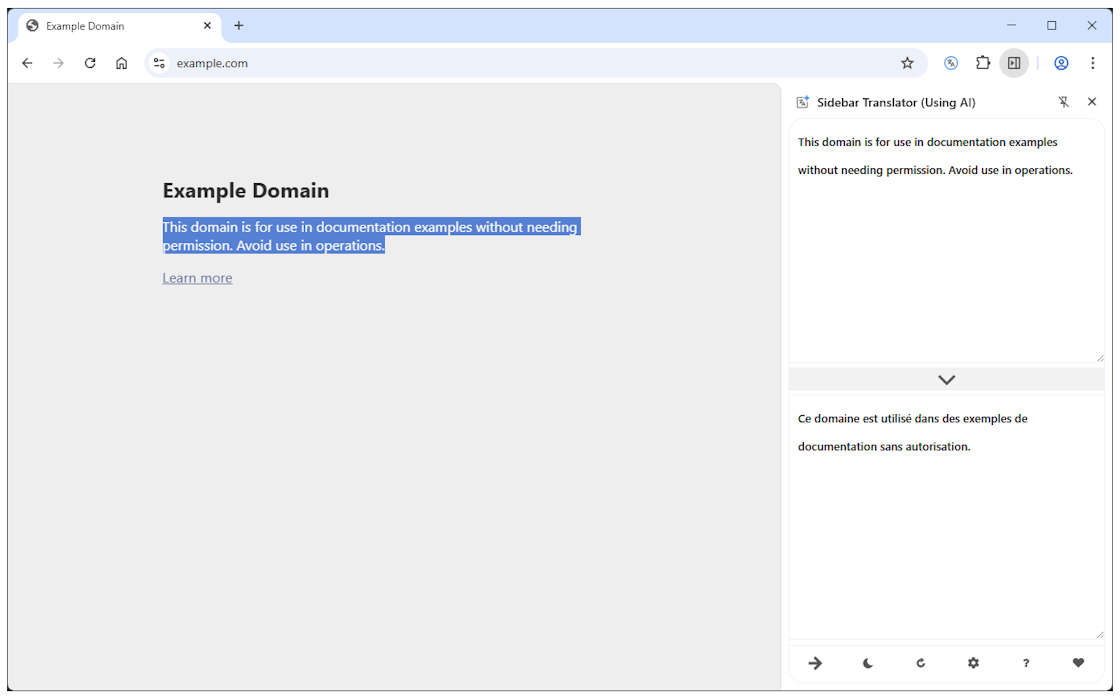
 This addon translates any text by using two different AI engines. It has an options page to adjust source and target languages and a few other settings, such as AI engine, font size, etc.
Some of the important features of the Sidebar Translator (Using AI) addon are listed below. This is followed by an overview of this addon. This summary contains few words about the addon, its function, and its features. Next is FAQ, this section is useful to get information about how this addon works in your browser. If you couldn't find a specific answer, please fill the bug report form on this page or the contact form on the homepage to let us know about your question. Following the FAQ, is the bug report form. It is designed to collect user feedbacks and bugs about this addon. Users can suggest improvements or feature requests through this form too. The next section is for submitting comments about this addon which uses the Facebook comments plugin. The last section is dedicated to reports submitted through the GitHub website. We hope the information provided on this page, could help you get all the basics you need about this addon and enable you to have a better experience with Sidebar Translator (Using AI).
Sidebar Translator (Using AI) lets you translate any text via the browser side panel by using two different AI engines (fully offline).
Store Links
Sidebar Translator (Using AI) is available on
5 Reasons to Use Sidebar Translator (Using AI)
Translate any text within the browser sidebar.
Can adjust source and target languages via the options page.
Supports two different local AI engines (works fully offline).
Has a few settings to adjust the sidebar interface.
Available for Chrome and Edge browsers.
YouTube Tutorial
This video gives you an idea of how the extension works in your browser.
Frequently Asked Questions
1. What is Sidebar Translator (Using AI)?
Sidebar Translator (Using AI) is a multi-browser add-on that helps users translate text by using two different AI engines that run locally on the browser and work fully offline. The interface for this addon is opened in the sidebar panel and has two different sections, top and bottom. The top section is for the input text, and the bottom section is for the translation result. There is also a toolbar at the bottom of the sidebar with a few self-explanatory buttons. To add text to the top input area, you also have the option to select text in any webpage. After selecting any text, it will be inserted into the top input area within the side panel, and translation starts automatically. To get more info about the AI engines and other options for the side panel, please read the following FAQ items.
2. How can I work with this addon?
Once you install the addon, please open the options and choose an AI engine. As mentioned above, this addon has two different AI engines. The first and the default AI engine is the built-in Gemini Nano AI (https://developer.chrome.com/docs/ai/translator-api). This AI engine supports limited source and target languages, but when fully loaded and ready, it does have decent speed and accuracy. On the other hand, there is another AI called NLLB-200 (https://huggingface.co/facebook/nllb-200-distilled-600M). It does support a wider variety of source and target languages, but runs a lot slower and needs more resources (CPU and RAM) compared to the built-in AI. When you first open the addon interface for the first time, both of these AI engines need to download trading and language data from the Internet. After this process, they can both work fully offline and without the need for an internet connection. Please note that the training data for these AI engines is quite large (around 1-3 GB). So please be patient while the addon prepares and downloads the necessary training and language data. Once the addon is ready, please choose a source and target language from the options page. Then type or enter a text in the side panel (top section) and press enter or the translate button (right arrow at the bottom toolbar). The translation result will be rendered in the bottom text area. If you want to change the font size or color of the sidebar results, please visit the options page. There are also other self-explanatory settings related to the translator behavior and interface.
3. How can I download the source code for Sidebar Translator (Using AI)?
To download the source code for this extension from Chrome Web Store, it is recommended to use Extension Source Downloader. With this addon, you can download the source code as a ZIP or CRX format to your machine. If you want to download the source code from the Firefox addons store, please open the firefox download link (if available) in the Firefox browser and then right-click on the - Add to Firefox - button and select - Save Link As... - item. Choose the destination folder on your machine and then save the file in XPI format. You can then rename the XPI format to a RAR or ZIP file. Some extensions may have a GitHub repo address, which you can use to download the source code as well. But, it may not be the latest version of the addon. Therefore, downloading the source code from the official web stores is the best option as it always gives you the latest version of the addon.
4. What is behind the Offline AI engines?
As mentioned above, for the Offline AI engines, when you choose any for the first time, it needs to download training and language data. So please be patient while the data is being downloaded to your machine. For Gemini Nano AI, please press the - Download - button (appears when needed) at the bottom of the sidebar to start downloading the training data. Please note that both offline AI methods are rather slow and resource-intensive. However, the Gemini Nano is a lot faster and lighter compared to the NLLB-200, which uses Transformers.js (https://huggingface.co/docs/transformers.js). Currently, NLLB-200 supports a wider variety of source and target languages compared to Gemeni Nano AI. As you change the languages, you will see the current status for each combination and whether it is supported or not.
5. What is the browser sidebar?
The browser sidebar is a panel or section that appears alongside (left or right side) the main content of a web browser window. It provides additional functionality and quick access to certain features or information without disrupting the main browsing experience. This addon renders the translator app within the sidebar interface. It does have a separate options page that opens in a new tab.
6. Does this addon support all languages??
No, as mentioned above, support for source and target languages is limited. Currently, Gemeni Nano AI supports fewer pairs of target-source languages compared to the NLLB-200. Please change the languages from the options page and see if the selected AI engine supports the current selection. In the future, when training and language data are updated, support for more languages will be added to the addon.
7. How can I trigger/generate the translation?
Within the sidebar at the bottom, there is a toolbar with a few buttons. The first button (with the right arrow icon) is for triggering the translation.
8. How to access the settings page?
To open the settings page, please press the settings button at the footer section within the sidebar. Alternatively, you can right-click the toolbar button and press the Options button from the context menu. All the items within the options page are self-explanatory, with relevant descriptions in the front. Moreover, when you change a setting, it is auto-saved to the memory, and you do not need to press a separate button to save the setting.
Reporting Bugs
Your feedback goes a long way towards making this addon even better. With this feedback and bug report form, you can report bugs or suggest features/enhancements for the functionality or performance of this addon. Please note that this form will be sent to the developer(s) of this addon. You will not get an immediate or personal response at the moment. However, the developer(s) may contact you through the email address provided in this form for further clarifications or to request additional information regarding the reported bug(s).
Reviews | Discussions
Please note: keep these reviews/discussions clean, and avoid the usage of derogatory or inappropriate language or terminology in references to individuals or groups based on race, national or ethnic origin, color, religion, age, gender, etc. Do not submit bugs in your reviews, use the above bug-report section instead. Also, never post any personal information in these reviews.
Bug fixes
Improved stability
UI enhancements
Bitcoin Address
bc1q6jv832gutyz500gv2geu44t8clwdxpwd2dm9ce

Lightning Address
mybrowseraddon@coinos.io